How to Organize Google Maps Saved Places for a Trip
Google Maps saves are great bookmarks but not a route. Here's how to turn your saved places into a day-by-day travel itinerary.
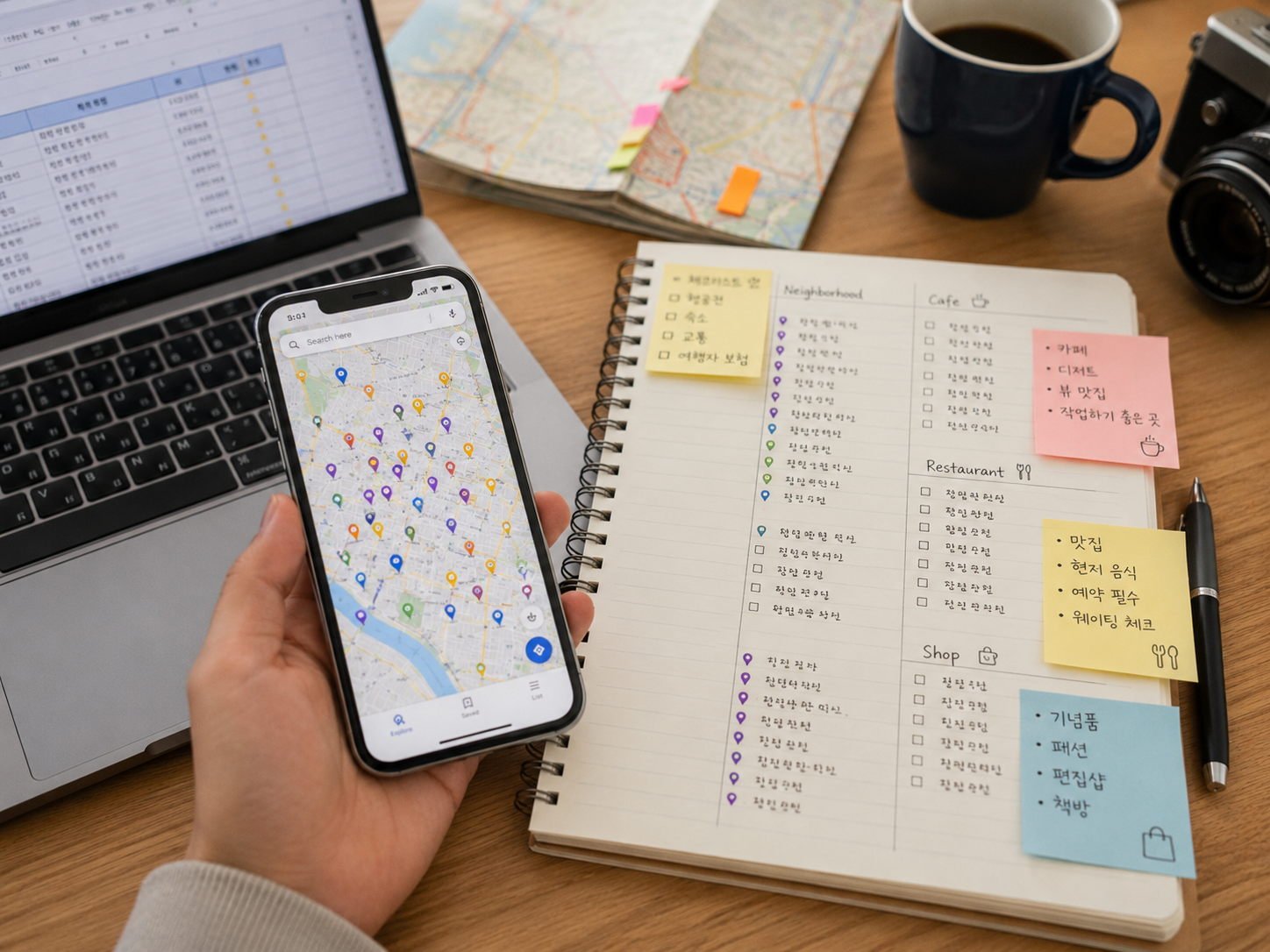
A lot of people measure their trip preparation by the number of Google Maps saves they've accumulated. 50 saves, 100 saves — surely that means a well-planned trip? In practice, opening Google Maps on location and seeing a screen full of pins tells you almost nothing about where to go first.
The Limits of Google Maps for Trip Planning
Google Maps saves are excellent for bookmarking. They're not designed for itinerary planning. As the number of saves grows, it becomes harder to see which spots are worth prioritizing, which you've already visited, and which are even near each other. There's no date assignment, no routing by day, no budget estimate.
Once you have more than 50–60 saved places in the same area, the map view stops being useful. The pins cluster together and you lose spatial awareness entirely.
Step 1: Clean Up Your Saves
Before you try to organize, cut the list down. Remove places you've already visited, places you've since decided to skip, and anything you saved impulsively but wouldn't actually go out of your way for. A shorter, curated list of 20–30 high-priority spots is far more useful than 100+ saves.
Turn your saved places into a day-by-day itinerary
Organize places by day in Travplan and manage your route and trip preparation in one place.
Step 2: Group by Area and Category
Use Google Maps Lists to sort your saves by neighborhood and type. For an Osaka trip, you might create lists like 'Namba-Food', 'Umeda-Shopping', 'Kyoto-Temples'. This grouping mirrors how you'll actually move during your trip — one area per day.
Organizing Google Maps Saved Places — Step by Step
Saving vs. Planning — Two Different Tasks
Saving a place is marking potential interest. Planning is deciding when, in what order, and with what time budget you'll actually go. These are fundamentally different tasks. Saving is fast and impulsive; planning requires looking at a map, considering travel time, and making allocation decisions across multiple days.
More saved places doesn't mean better trip planning — it often means more confusion at the decision point.
Turning Saves into a Real Itinerary
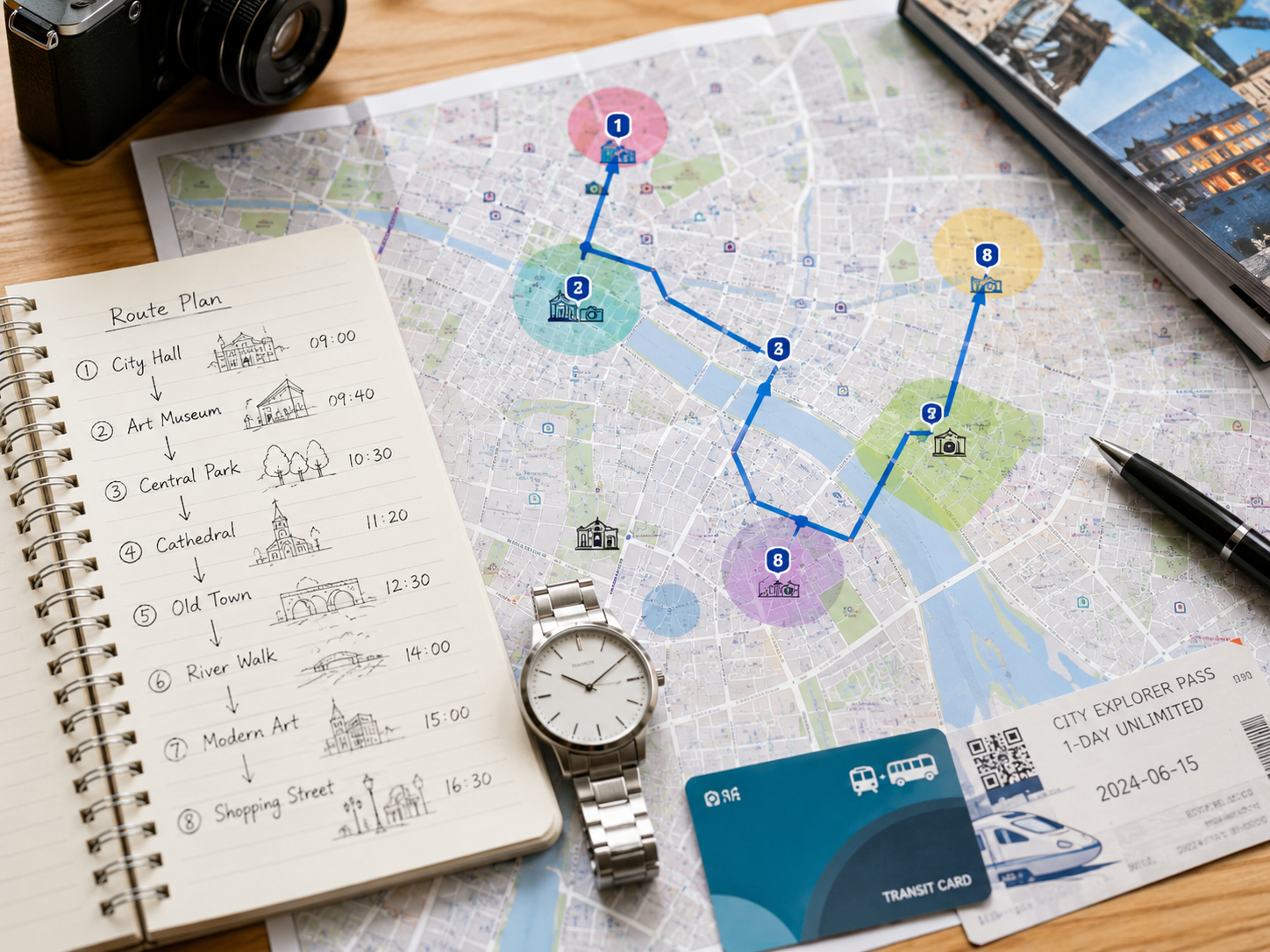
Once you've grouped your saves spatially, you can assign them to days. Places in the same neighborhood go in the same day. You arrange them in a logical travel direction so you're not backtracking. Travplan lets you drag saved places into day slots and see your route on a map, so you can turn a disorganized collection of pins into a day-by-day plan you can actually follow.